You can create a pendulum wave animation in Java Swing by drawing several pendulums and giving each one a slightly different oscillation frequency. Their movements gradually form changing patterns before returning to alignment.
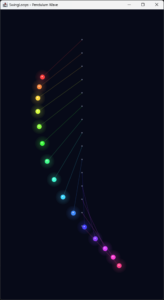
Pendulum Wave
In this SwingLoops example, 15 glowing pendulums complete different numbers of swings within a shared 24-second cycle. The animation uses only Java Swing and Java 2D, without external libraries or image assets.
import javax.swing.*;
import java.awt.*;
import java.awt.geom.Ellipse2D;
import java.awt.geom.Line2D;

public class PendulumWave extends JPanel {
    private static final int COUNT = 15;
    private static final double CYCLE = 24.0;
    private final long start = System.nanoTime();
    private final Timer timer = new Timer(16, _ -> repaint());

    public PendulumWave() {
        setPreferredSize(new Dimension(540, 960));
        setBackground(new Color(7, 10, 24));
    }

    @Override
    public void addNotify() {
        super.addNotify();
        timer.start();
    }

    @Override
    public void removeNotify() {
        timer.stop();
        super.removeNotify();
    }

    @Override
    protected void paintComponent(Graphics graphics) {
        super.paintComponent(graphics);
        Graphics2D g = (Graphics2D) graphics.create();
        try {
            g.setRenderingHint(RenderingHints.KEY_ANTIALIASING,
                    RenderingHints.VALUE_ANTIALIAS_ON);

            double scale = Math.min(
                    getWidth() / 540.0, getHeight() / 960.0);
            g.translate(getWidth() / 2.0, getHeight() / 2.0);
            g.scale(scale, scale);
            g.translate(-270, -480);

            double time = (System.nanoTime() - start) / 1e9;
            double phase = (time % CYCLE) / CYCLE;

            for (int i = 0; i < COUNT; i++) {
                double pivotX = 270;
                double pivotY = 100 + i * 44;
                double length = 180;

                // Each pendulum completes an integer number
                // of swings during the shared 24-second cycle.
                double angle = 0.95 * Math.cos(
                        2 * Math.PI * (12 + i) * phase);
                double x = pivotX + length * Math.sin(angle);
                double y = pivotY + length * Math.cos(angle);

                Color color = Color.getHSBColor(
                        i / (float) COUNT, 0.75f, 1f);

                g.setComposite(AlphaComposite.SrcOver.derive(0.22f));
                g.setColor(color);
                g.setStroke(new BasicStroke(1.5f));
                g.draw(new Line2D.Double(pivotX, pivotY, x, y));

                g.setComposite(AlphaComposite.SrcOver);
                g.setColor(new Color(110, 120, 145));
                g.fill(new Ellipse2D.Double(
                        pivotX - 2, pivotY - 2, 4, 4));

                for (int glow = 4; glow >= 1; glow--) {
                    double radius = 8 + glow * 4;
                    g.setComposite(
                            AlphaComposite.SrcOver.derive(0.045f));
                    g.setColor(color);
                    g.fill(new Ellipse2D.Double(
                            x - radius, y - radius,
                            radius * 2, radius * 2));
                }

                g.setComposite(AlphaComposite.SrcOver);
                g.setColor(color);
                g.fill(new Ellipse2D.Double(x - 8, y - 8, 16, 16));
                g.setColor(new Color(255, 255, 255, 190));
                g.fill(new Ellipse2D.Double(x - 3, y - 4, 4, 4));
            }
        } finally {
            g.dispose();
        }
    }

    static void main() {
        SwingUtilities.invokeLater(() -> {
            JFrame frame = new JFrame("SwingLoops - Pendulum Wave");
            frame.setDefaultCloseOperation(JFrame.EXIT_ON_CLOSE);
            frame.setContentPane(new PendulumWave());
            frame.pack();
            frame.setLocationRelativeTo(null);
            frame.setVisible(true);
        });
    }
}
Run the example
Install a Java Development Kit and open a terminal in the directory containing the source file:
javac PendulumWave.java
java PendulumWave
A desktop environment is required to display the Swing window. Close the window to stop the application.
The preferred drawing area is 540 × 960 pixels. If the window is too tall for your display, change the dimensions to 405, 720. The drawing scales proportionally when you resize the window.
Calculating the pendulum angle
Each pendulum swings, according to a cosine function:
double angle = 0.95 * Math.cos(2 * Math.PI * (12 + i) * phase);
The formula has three main parts:
0.95is the angular amplitude in radians, approximately 54.4 degrees.2 * Math.PIrepresents one complete oscillation of the cosine function.12 + idetermines how many oscillations the pendulum completes during the shared cycle.
Cosine varies between −1 and 1, so each pendulum’s angle varies between −0.95 and 0.95 radians.
In the beginning, every cosine evaluates to 1. All pendulums therefore start at the same angle.
Why do the pendulums return to alignment?
Elapsed time is converted into a repeating phase:
double phase = (time % CYCLE) / CYCLE;
With CYCLE set to 24 seconds, the phase advances from zero toward one, then returns to zero.
The first pendulum completes 12 oscillations during that interval. Each subsequent pendulum completes one more:
| Pendulum | Oscillations in 24 seconds | Period |
|---|---|---|
| First | 12 | 2 seconds |
| Second | 13 | About 1.85 seconds |
| Eighth | 19 | About 1.26 seconds |
| Fifteenth | 26 | About 0.92 seconds |
Because all oscillation counts are integers, every pendulum completes a whole number of swings at the end of 24 seconds.
For an integer n:
cos(2π × n) = 1
The pendulums return to their starting angles and the pattern repeats. During the cycle, their different frequencies produce the changing wave patterns.
Here, “alignment” means the pendulums have the same angle. Their pivots remain vertically separated.
Converting the angle into screen coordinates
Once the angle is known, the bob’s position is calculated relative to its pivot:
double x = pivotX + length * Math.sin(angle);
double y = pivotY + length * Math.cos(angle);
The angle is measured from the downward vertical direction.
When the angle is zero:
sin(0) = 0
cos(0) = 1
Therefore:
x = pivotX
y = pivotY + length
The bob hangs directly below its pivot.
A positive angle moves the bob to the right, while a negative angle moves it to the left. Swing’s screen coordinates increase downward, which is why the vertical offset is added to pivotY.
Is this a physical pendulum simulation?
This example uses prescribed sinusoidal motion to create a visual effect.
All pendulums have the same drawn length, while their frequencies are assigned independently. Real pendulum wave demonstrations commonly use different lengths to get different periods.
For a simple pendulum at small angles, the approximate period is:
T = 2π × √(L / g)
Here, L is the pendulum length and g is gravitational acceleration. Longer pendulums swing more slowly.
Our animation does not solve that physical model. Its amplitude is also larger than the small-angle range where a real pendulum closely follows sinusoidal angular motion.
Creating the glow
Each bob is surrounded by four overlapping circles:
for (int glow = 4; glow >= 1; glow--) {
    double radius = 8 + glow * 4;
    // Draw a translucent circle.
}
Each circle has low opacity. Their overlapping areas become brighter toward the center, approximating a soft glow without applying a blur filter.
An opaque-colored bob and a small pale highlight are drawn afterward.
The code explicitly restores the composite before drawing opaque elements so that the glow’s transparency does not affect them.
Updating the animation safely
A Swing timer requests a repaint approximately every 16 milliseconds:
private final Timer timer = new Timer(16, _ -> repaint());
This targets roughly 60 updates per second, but actual timing depends on the system and Swing’s event queue.
The animation calculates positions from elapsed time rather than counting frames. A delayed repaint, therefore, does not change the intended 24-second cycle.
The interface is created with SwingUtilities.invokeLater(). Timer callbacks and painting also execute on Swing’s event-dispatch thread.
Customize the animation
Try changing one parameter at a time:
| Parameter | Effect |
|---|---|
COUNT |
Changes the number of pendulums. Larger counts may require tighter vertical spacing. |
CYCLE |
Changes the shared cycle duration. Larger values slow every pendulum. |
12 + i |
Changes the oscillation counts. Keep integer counts to preserve the shared loop. |
0.95 |
Changes the maximum swing angle in radians. |
length |
Changes the drawn string length without changing the assigned frequency. |
i * 44 |
Changes the vertical spacing between pivots. |
0.75f in getHSBColor() |
Changes color saturation. |
For example, replacing 12 + i with 12 + 2 * i increases the frequency difference between neighboring pendulums while retaining integer oscillation counts.
Explore the SwingLoops repository on GitHub for the series’ source code collection.